Create a Database Backup Cleanup Maintenance Plan
- Open SQL Server Management Studio
- Login to SQL Instance
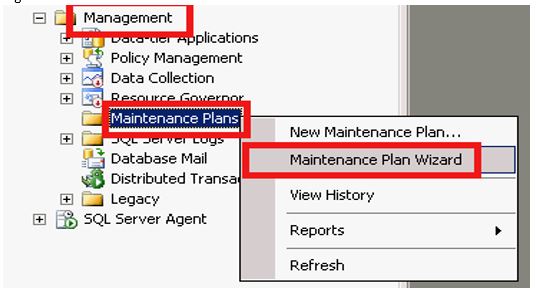
- Click on the plus sign next to the Management folder to expand it.
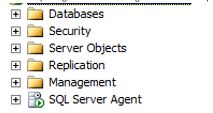
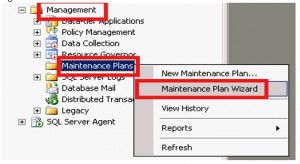
- Right-Click on the Maintenance Folder and select Maintenance Plan Wizard.
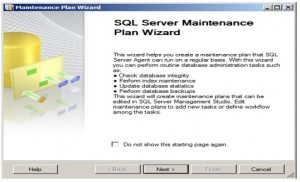
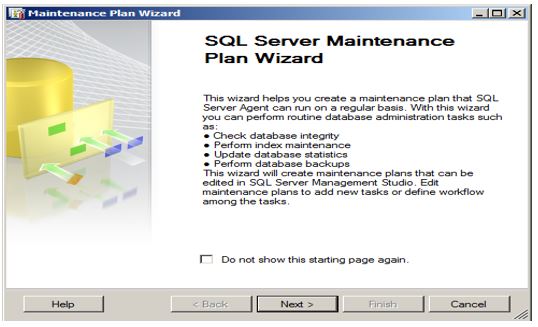
- Click Next
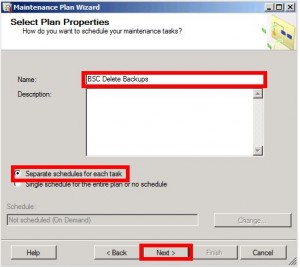
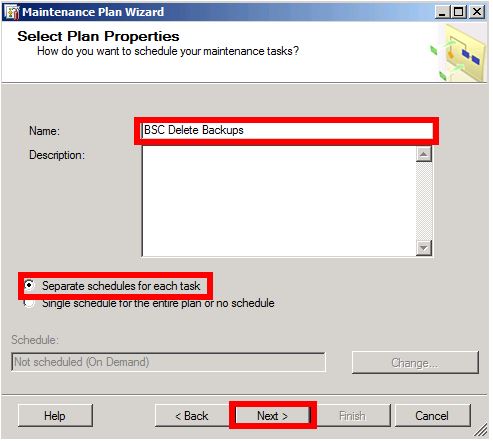
- Enter Plan name and select “Separate schedules for each task”
- Click Next
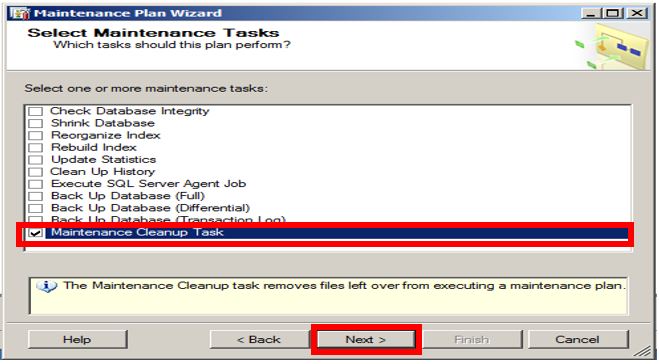
- Select Maintenance Cleanup Task and click Next.
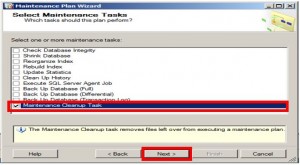
- Click Next
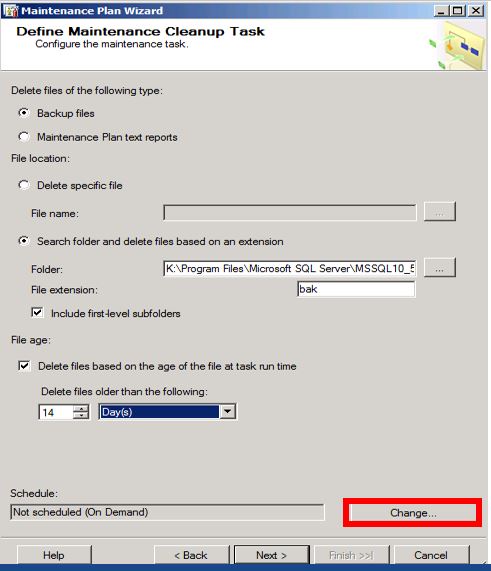
- On the Define Maintenance Cleanup task, make the following selections:
- Delete files of following Type: Leave Default selection “Backup files”
- File Location: Choose “Search folder and delete files based on an extension”
- Folder: Enter the path and folder where Backup Job saves backup files
- File Extension: bak (Do not include the “.” in the file extension text box!!)
- Check – Include first-level subfolders. (First-level folders must be included to help reclaim drive space.)
- File age: Check – Delete files based on the age of the file at task run time
- Delete files older than the following: 14 Days
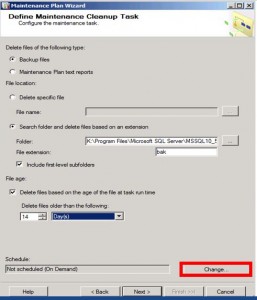
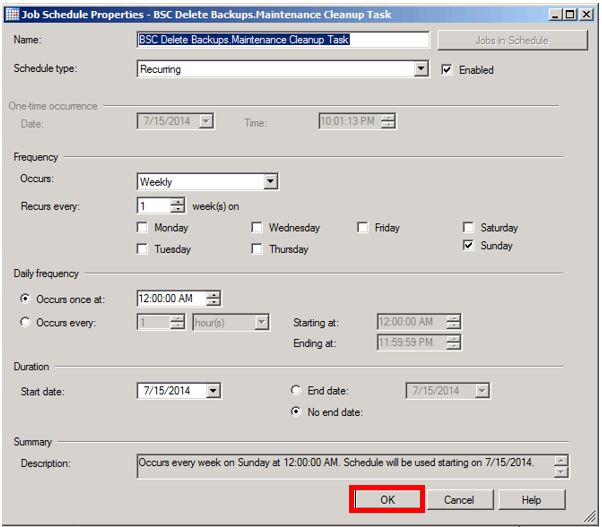
- Click Change
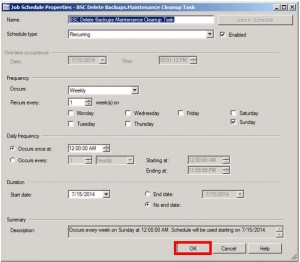
- Click OK
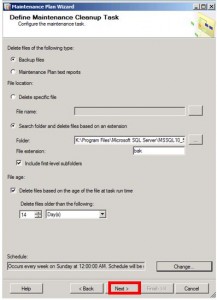
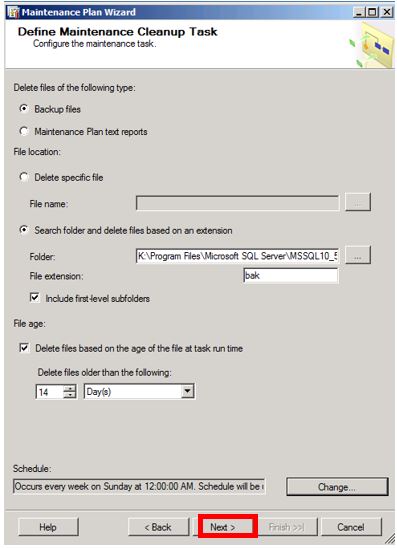
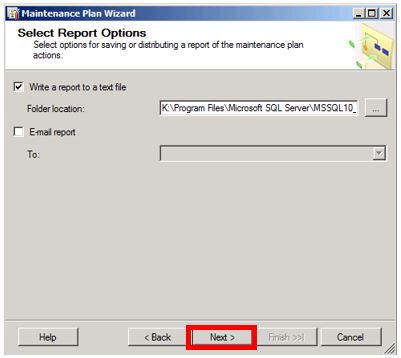
- Click Next
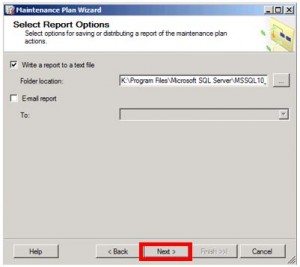
- Click Next
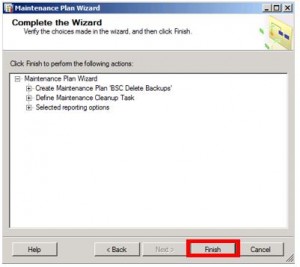
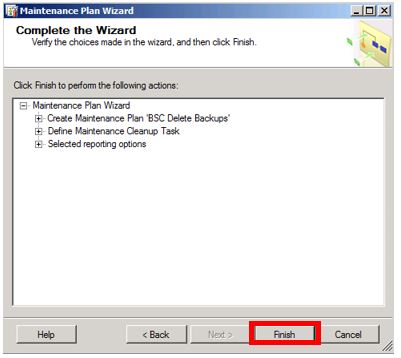
- Click Finish
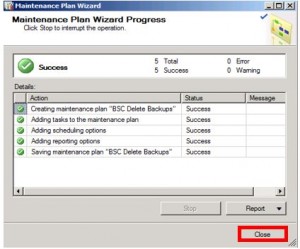
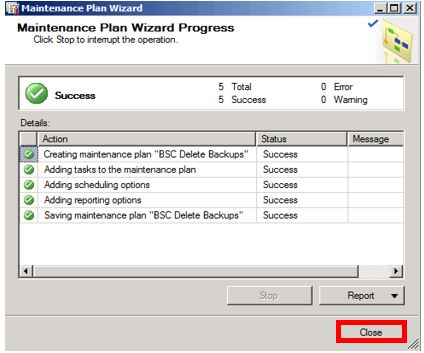
- Click Close
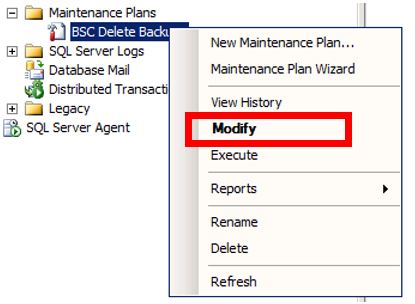
- Click on the plus sign to the left of Maintenance Plans
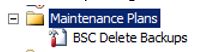
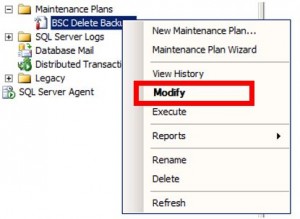
- Right-Click on the maintenance plan and choose Modify
- Choose Add Subplan

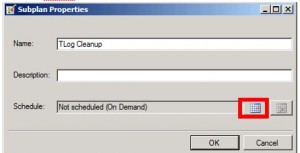
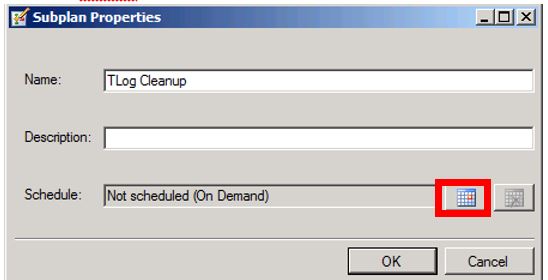
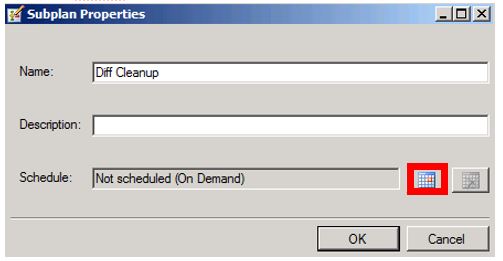
- Name the Subplan and click on the Schedule button
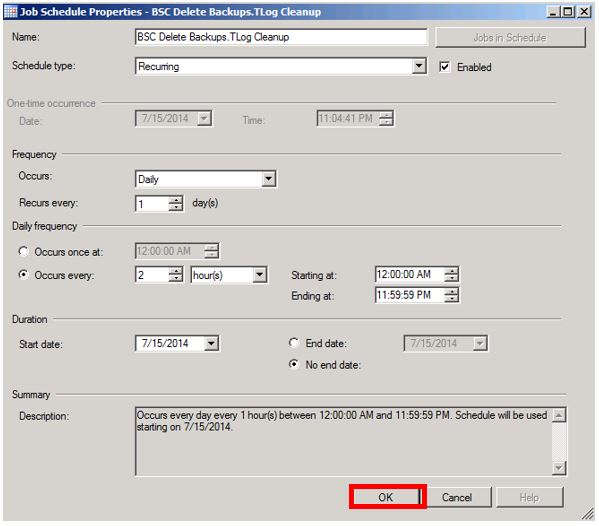
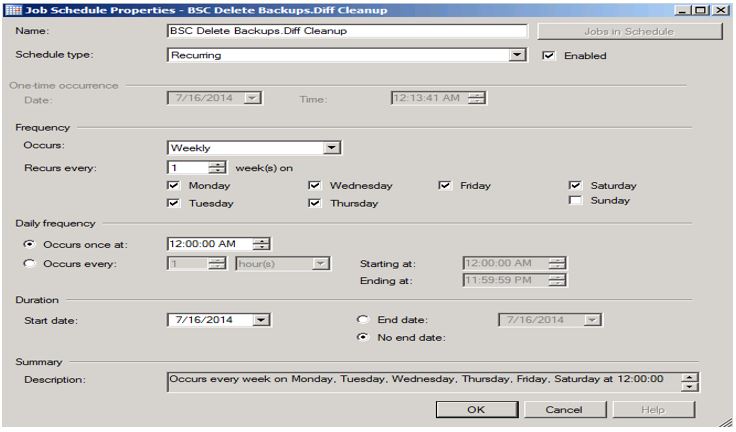
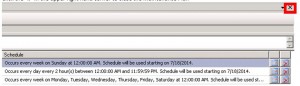
- Configure the schedule as below.
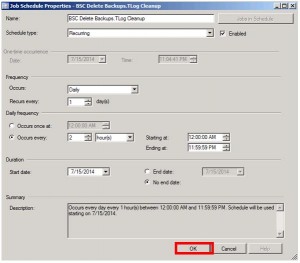
- Click OK
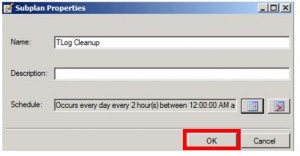
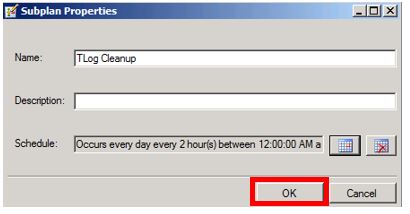
- Click OK
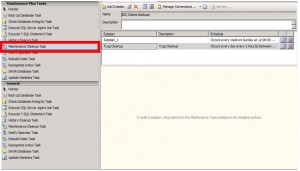
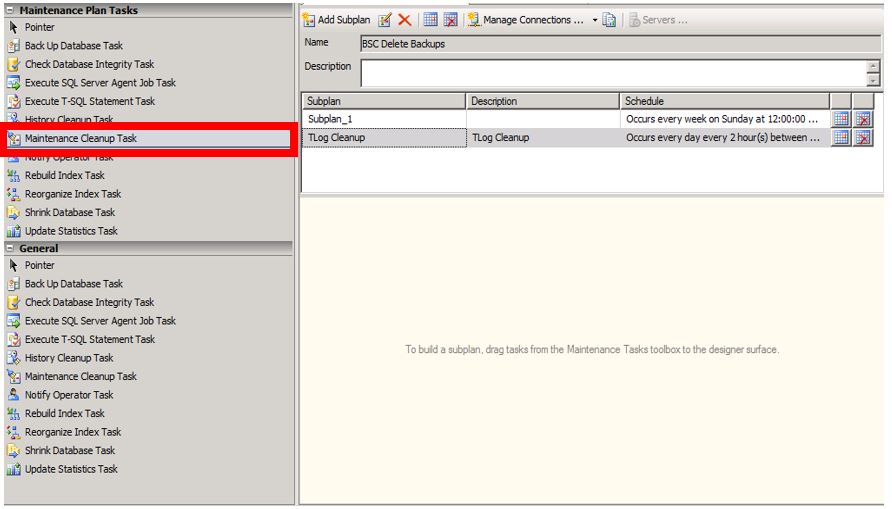
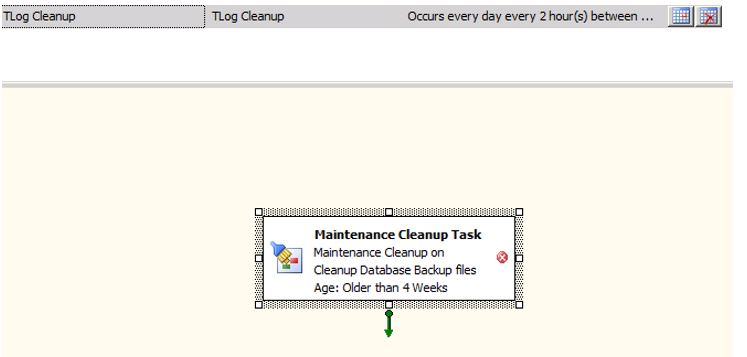
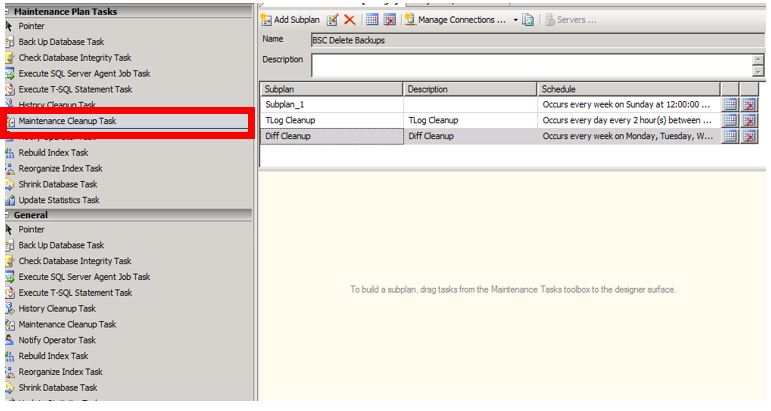
- Click and drag the Maintenance Cleanup Task to the Designer Surface
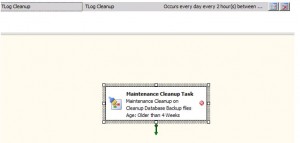
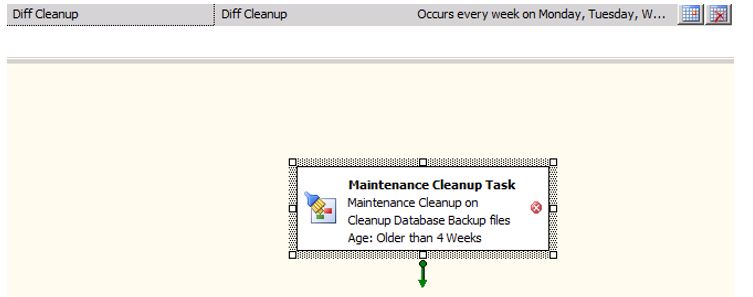
- Double-Click on the Maintenance Cleanup Task
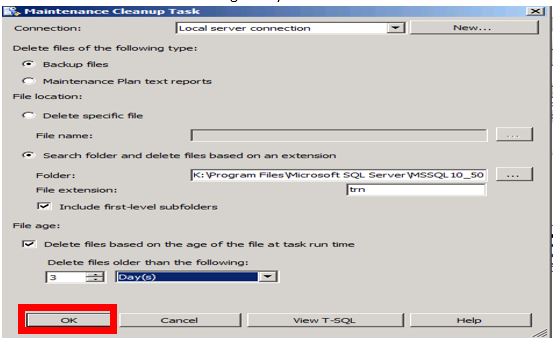
- On the Define Maintenance Cleanup task, make the following selections.
- Delete files of following Type: Leave Default selection “Backup files”
- File Location: Choose “Search folder and delete files based on an extension”
- Folder: Enter the path and folder where Backup Job saves backup files
- File Extension: trn (Do not include the “.” in the file extension text box!!)
- Check – Include first-level subfolders. (First-level folders must be included to help reclaim drive space.)
- File age: Check – Delete files based on the age of the file at task run time
- Delete files older than the following: 3 Days
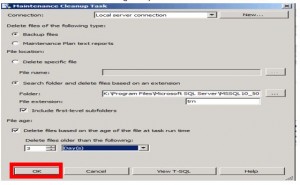
- Click OK
- Click the Save Button

- Click Add Subplan

- Name the Subplan and click on Schedule
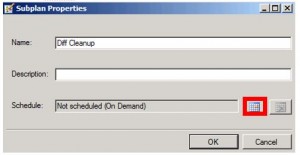
- Configure the schedule as below.
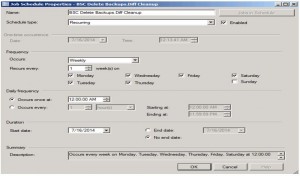
- Click OK
- Click OK
- Click and drag the Maintenance Cleanup Task to the Designer Surface
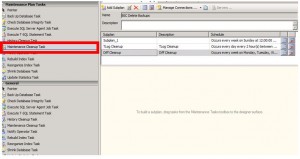
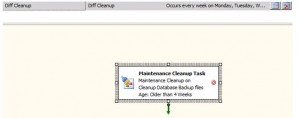
- Double-Click on the Maintenance Cleanup Task
- On the Define Maintenance Cleanup task, make the following selections.
- Delete files of following Type: Leave Default selection “Backup files”
- File Location: Choose “Search folder and delete files based on an extension”
- Folder: Enter the path and folder where Backup Job saves backup files
- File Extension: bak (Do not include the “.” in the file extension text box!!)
- Check – Include first-level subfolders. (First-level folders must be included to help reclaim drive space.)
- File age: Check – Delete files based on the age of the file at task run time
- Delete files older than the following: 7 Days
- Click OK
- Click the Save Button

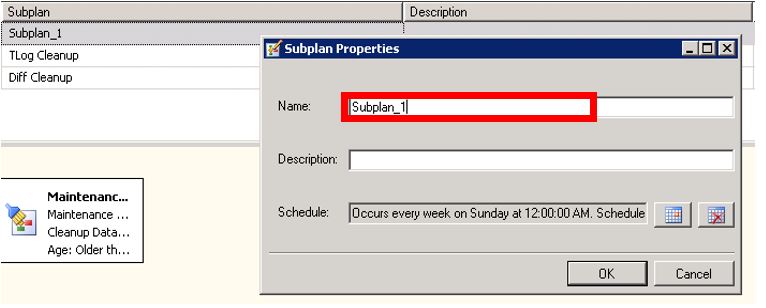
- Double-Click on Subplan_1 to open the Subplan properties Window
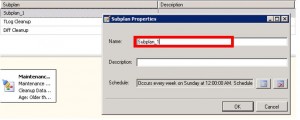
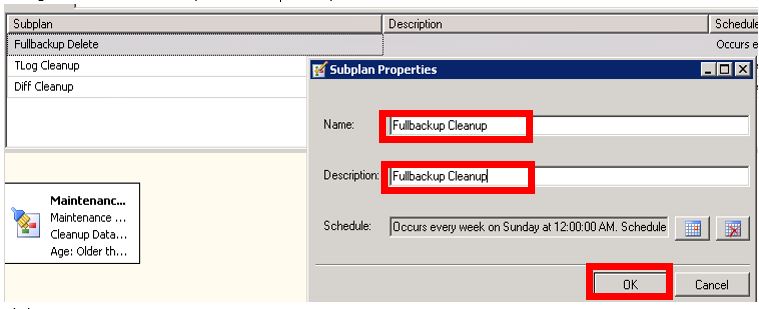
- Change the Name and Description to “Full Cleanup”
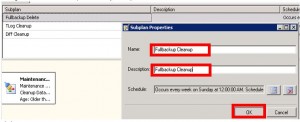
- Click OK
- Click the Save Button

- Click the “x” in the upper right hand corner to close the Maintenance Plan





Written By: Montrial Harrell